openquote

Openquote Care Records that carry on,
numbers you can trace.

A Windows app for counseling records and monthly statistics. When the classification changes, past records don't have to be counted again — a crosswalk carries them over, and only what a person must decide is set aside.

Download for Windows Free · No account · Installs without administrator rights · Early preview
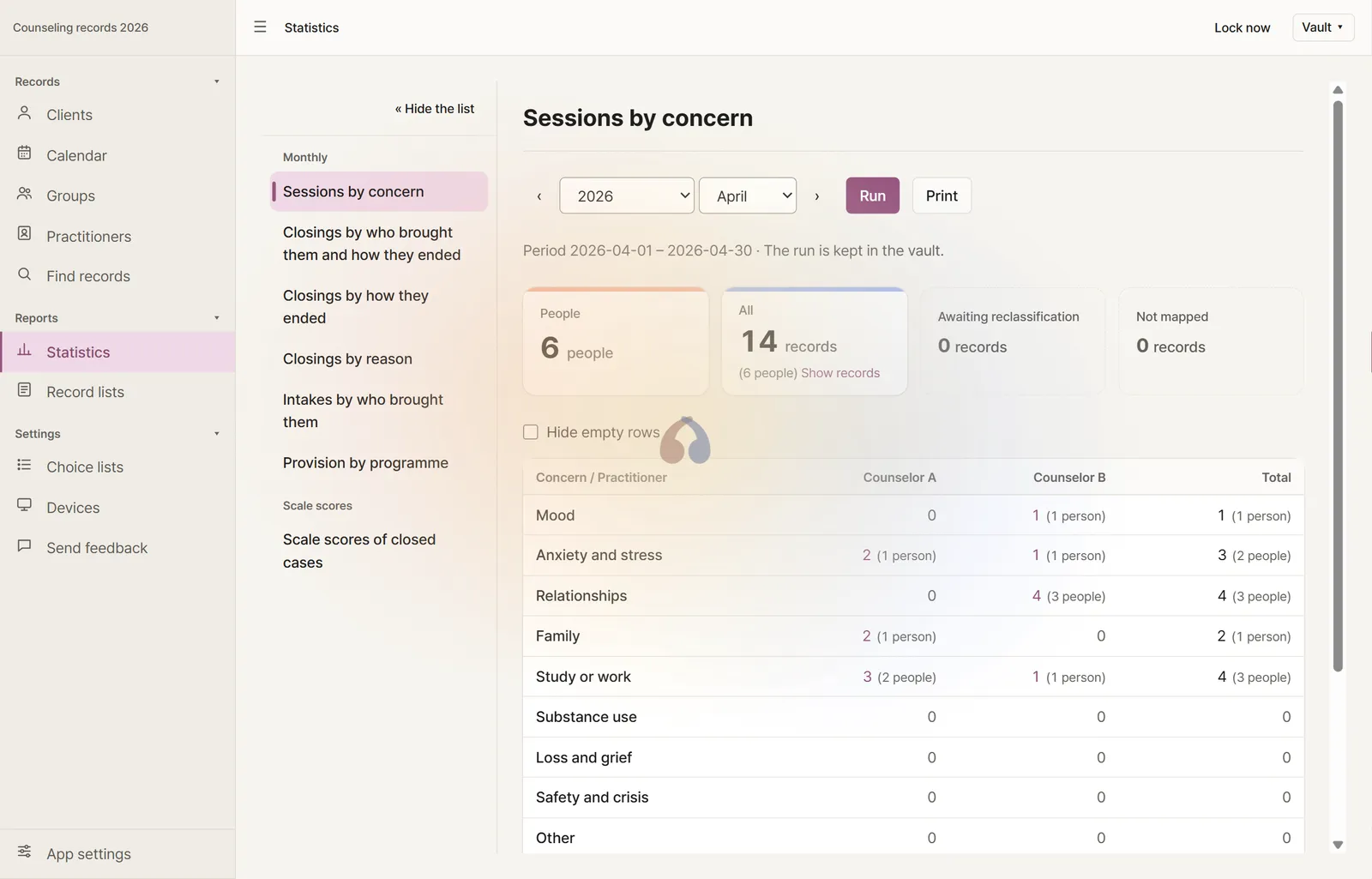
Statistics: sessions of one month by concern and practitioner, with the number of people beside each count.

Your folder, encrypted

Records stay as encrypted files in a folder you choose. No server, no account — and they can be opened with a public tool even without the app.

Every number has its records

Each cell of the monthly statistics leads back to the records behind it. Produced reports are kept as they were, and a rerun shows whether a difference came from a late entry, a revision or an edited record.

Categories change; counts don't start over

Applying a revised classification carries past records over through a crosswalk. Only a category split into several waits for the counselor to pick.

The counselor decides

Candidate categories come from past records, but nothing is filled in until one is picked. Safety concerns are set apart, marked to be confirmed.

Example · synthetic data

Monthly statistics after a revision

BeforeAfterThis month
RelationshipsRelationships12
Study
Career
Study & career17
EmotionalDepression & anxiety or Stress3
Total = classified 29 + awaiting reclassification 332

A renamed category carries over as is; merged categories are added together. A category split into several is never divided by ratio — its records wait for reclassification until the counselor picks.

Features · the real app, synthetic records

See it before you install it

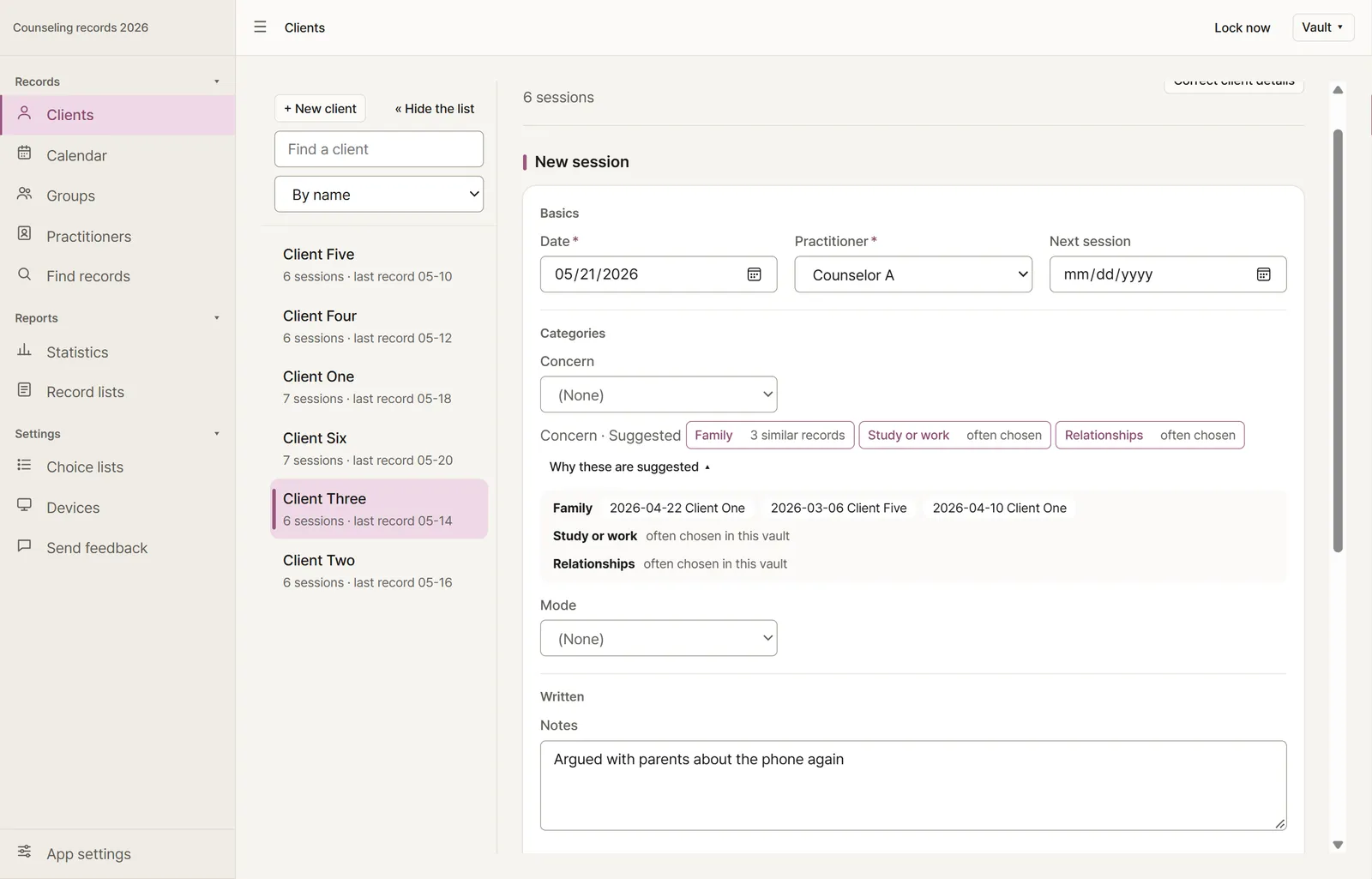
A new session being entered: under the concern field, candidates from similar past sessions, and the dates and clients of those sessions.

Sessions, and suggested concerns

Record sessions for each client: date, practitioner, concern, mode and notes. A group session is recorded once and counted for each person who took part.

As you write the notes, the app suggests concerns from the most similar past sessions — learned on this computer, from this vault only. Each candidate says why it is there — “5 similar records” or “often chosen” — and the one the closest past session holds comes first. “Why these?” shows the sessions behind it by date and client, never by what they say.
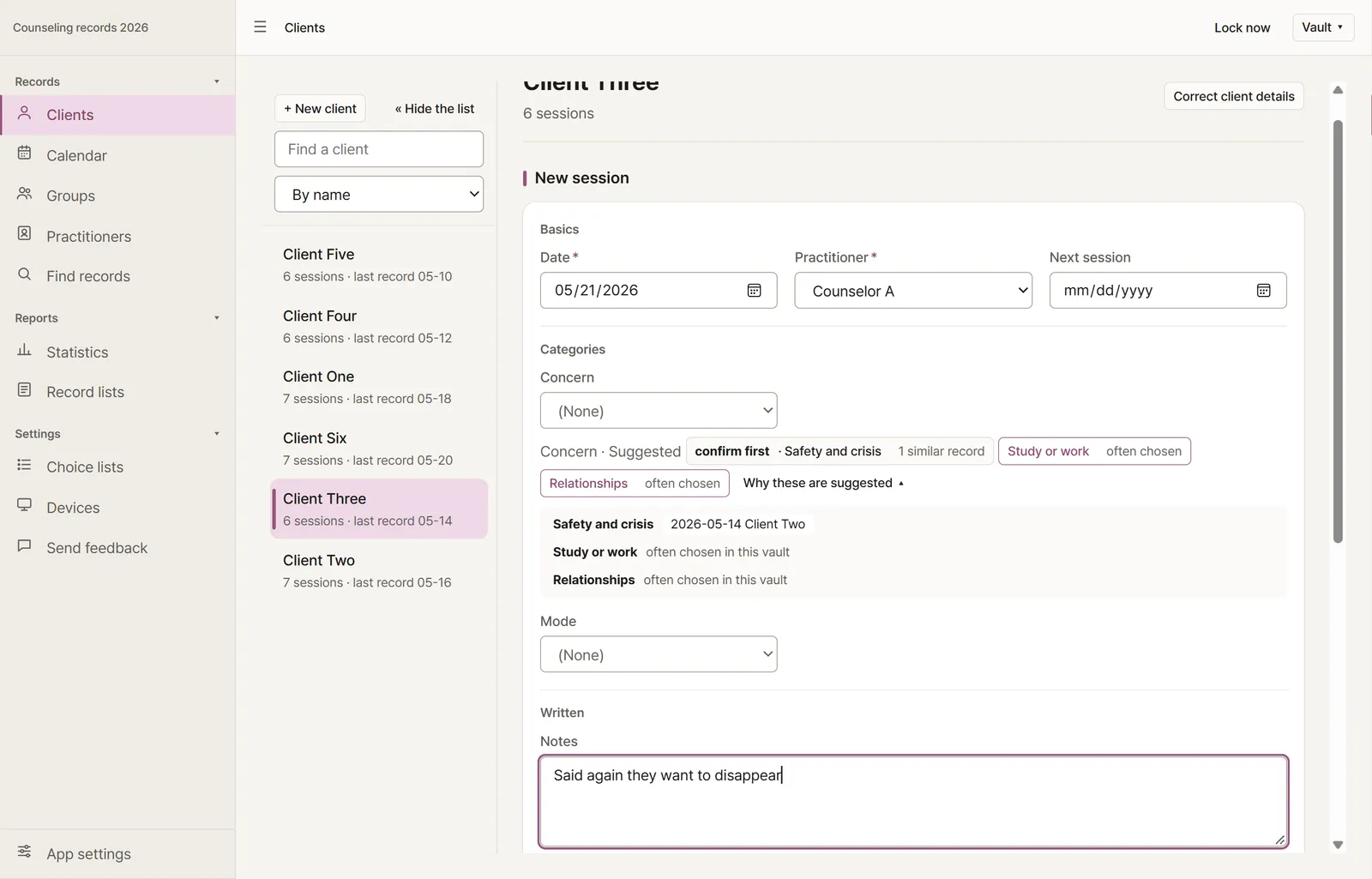
Among the candidates, the safety concern is set apart and marked confirm first; the concern field is still empty.

Safety is marked “confirm first”

The safety concern is suggested too, but set apart from the other candidates and marked to be confirmed. No candidate fills anything in until the counselor picks it, and a value taken from a suggestion says so.

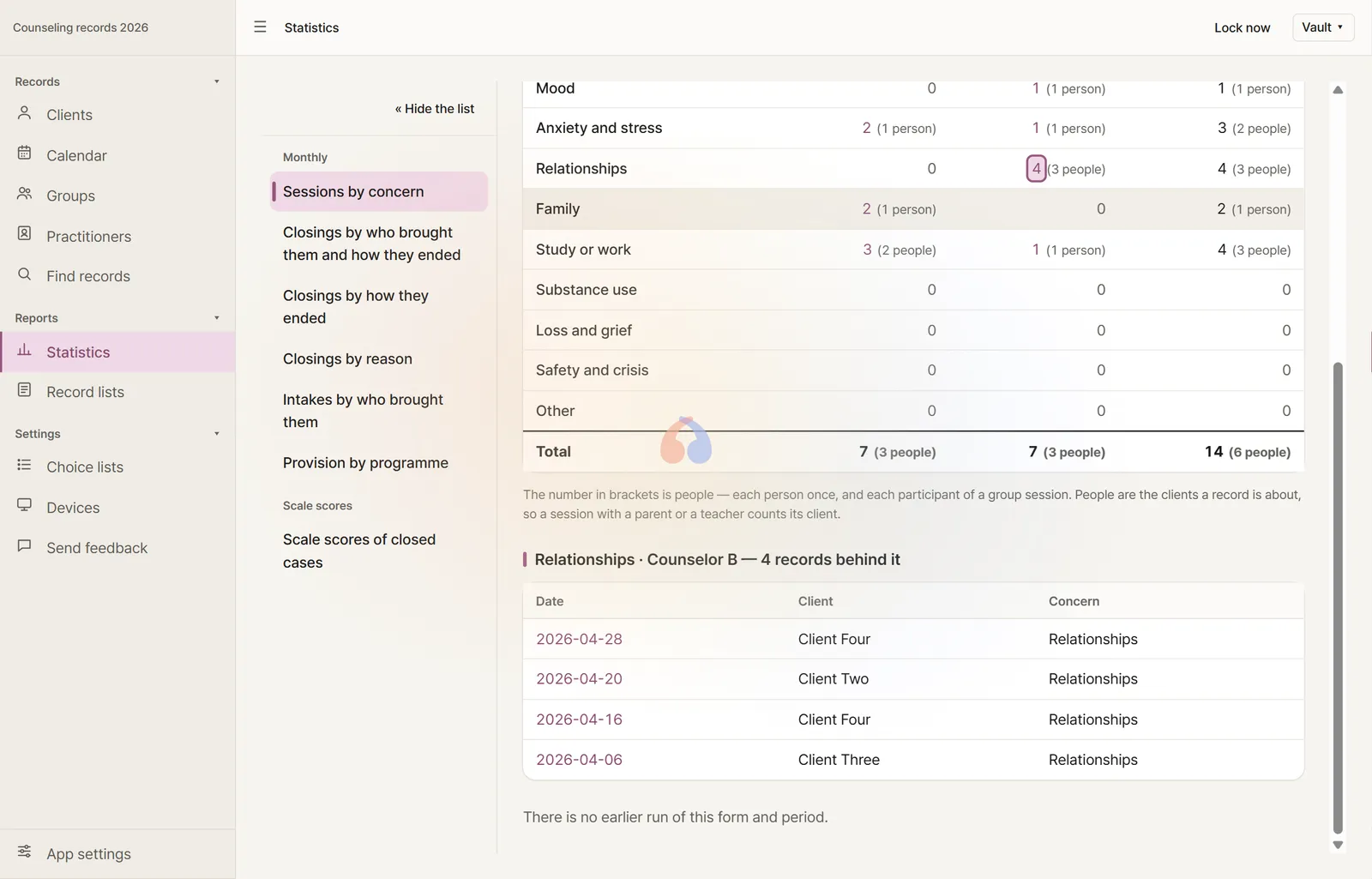
In Statistics, one count opened: the records it is made of, by date and client.

Statistics, and what each count is made of

Pick a report form and its period and run it — for the monthly form, sessions by concern, a column per practitioner, the number of people beside each count. Open any count to see the records behind it. Every run is kept in the vault as it was, and prints as shown.

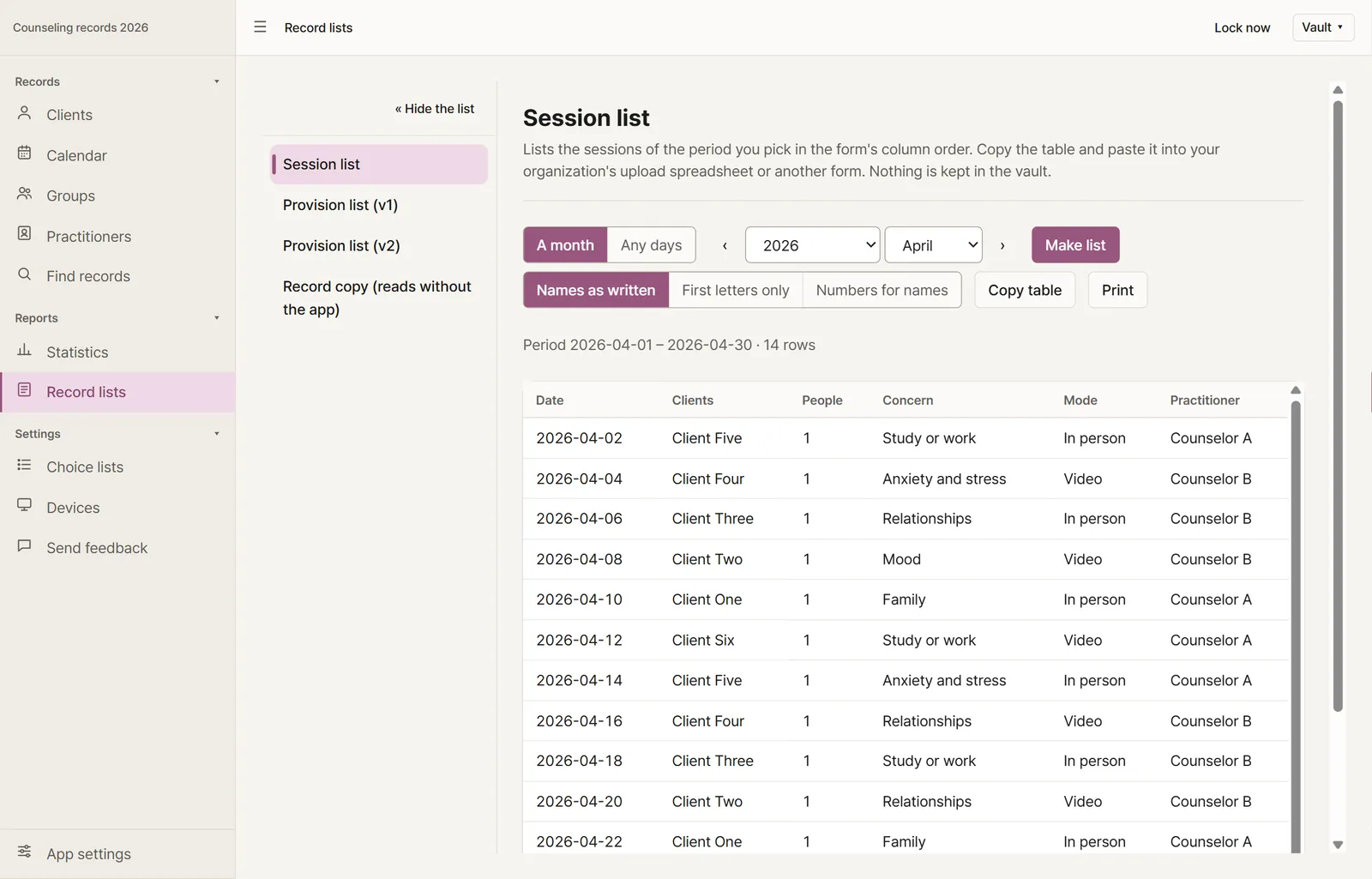
The record list: one month of sessions in columns, with a choice of month or period, a choice of names as written, first letters only or numbers for names, and buttons to copy or print the table.

Record lists, ready to paste

Lay out the sessions of a month — or of any days you pick, such as a school year — in a list form and copy it as a table into a spreadsheet or another system, or print it. For a list that passes through other hands, names can be shown, printed and copied with their first letters only or as numbers — the same client the same number, the records unchanged. Notes never go into a list.

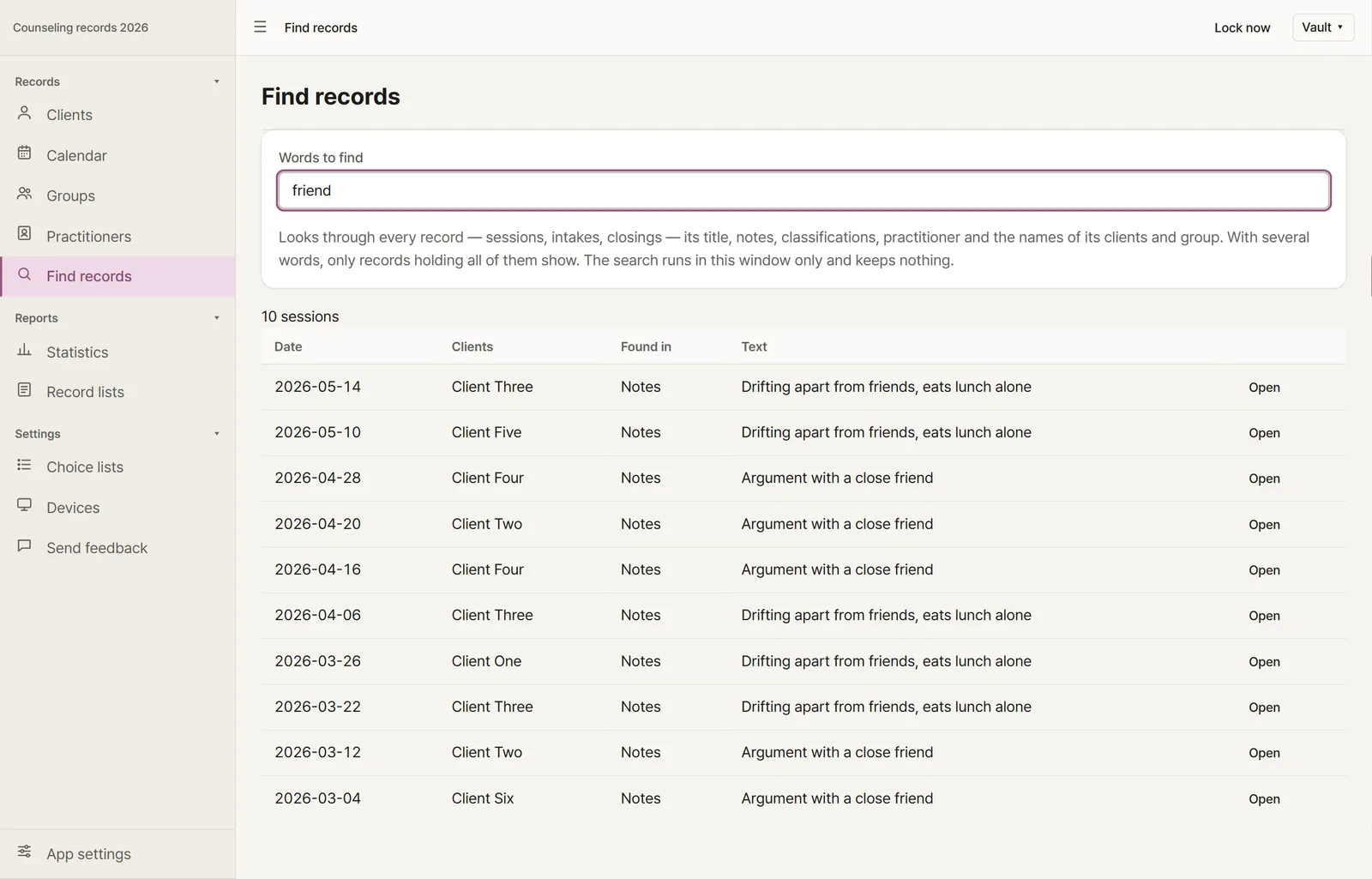
Find records: a word typed, and the sessions whose notes hold it, by date, client, where it was found and the words around it, each with an Open button.

Find records

Type a word and the sessions holding it — in a title, the notes, a classification or the names of the clients and practitioner — show newest first; Open takes you to the session with its notes open. With several words, only sessions holding all of them show. The search runs in the app's window and keeps nothing.

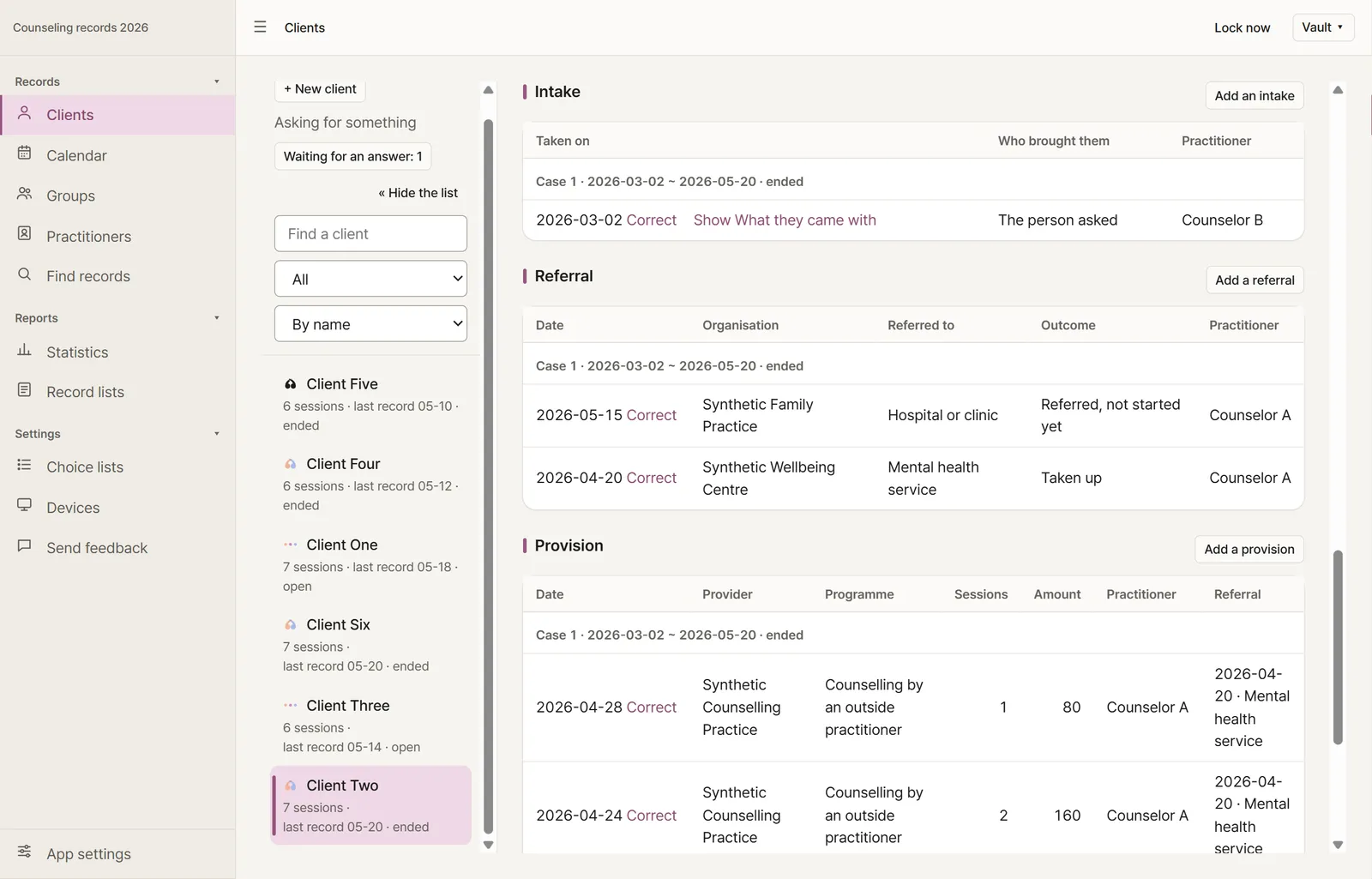
A client's page: below the past sessions, a Referrals list with two referrals by date, organisation, where to, outcome and practitioner, and a button to record a referral.

Referrals

Record a referral on the client's page: where to, the organisation and the outcome. Why it was not taken up opens under its row, like a session's notes. Referrals are never counted as sessions; they are found by words and go into the copy that reads without the app.

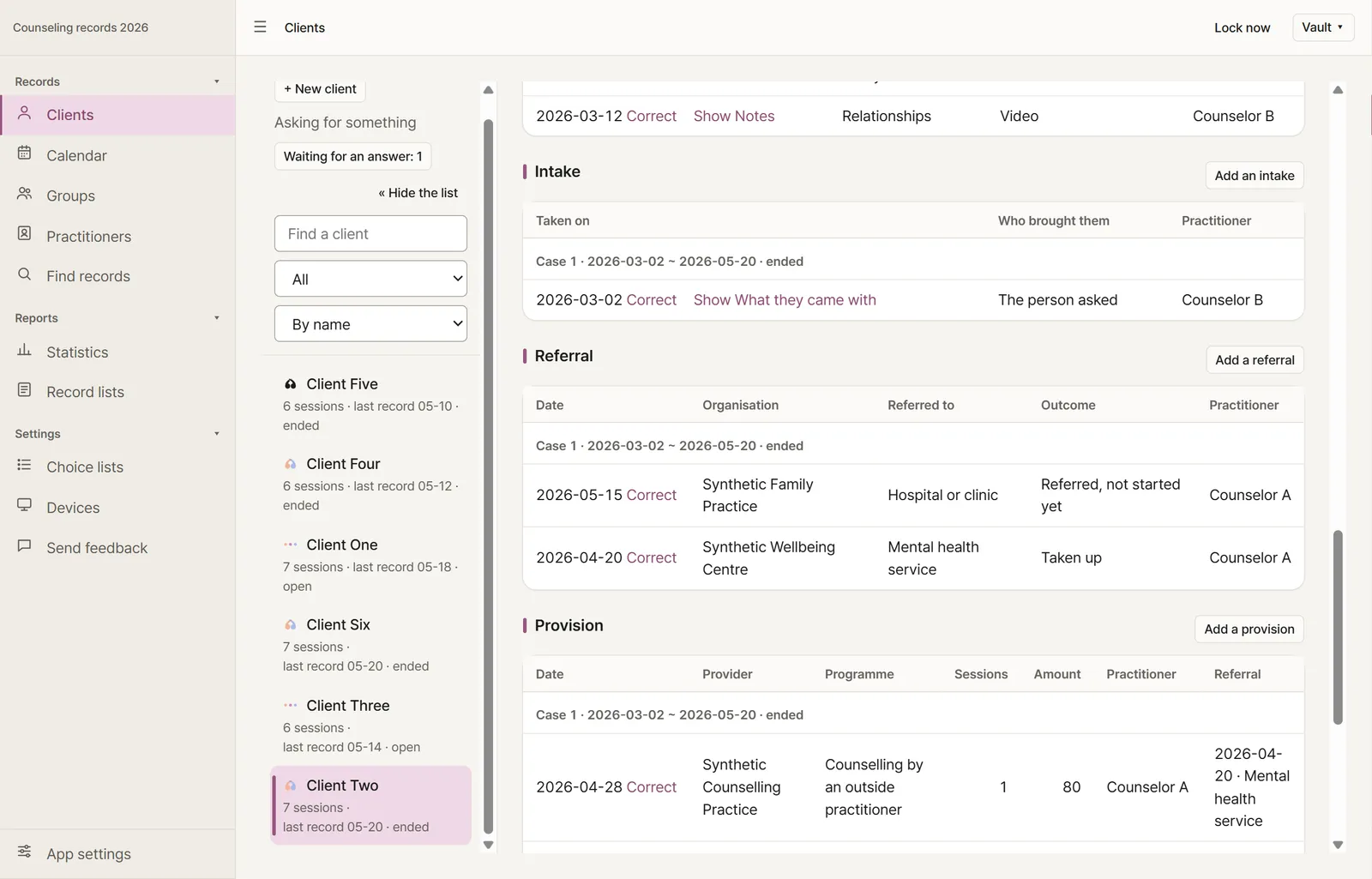
A client's page: below the past sessions, Intake (taken on, who brought them: the person asked), Referral (two referrals) and Closing (closed on, why it closed: moved to another service), in the order the work took, each table with its records under a “Case 1 · days · ended” line, and a button to add one.

Intakes and closings

Record when the work with a client began and who brought them: the person, their family, a school or teacher, another service or a screening result. Record when it ended and why: completed as planned, moved to another service, request withdrawn, lost contact, declined by the person or the family, or moved away. What they came with and the closing summary open under their row, like a session's notes. The client's page lists intakes, referrals and closings in the order the work took, and sessions can still be added after a closing. From an intake to its closing is one case, and each list on the page goes case by case, the latest first — a client who comes back is not mixed with their earlier case. Before each name in the list of clients, and on each case's heading, the app's quote mark says where the case stands — the open quote before its first session, three dots while it goes on, the two quotes facing once it has ended, in colour only when it ended as planned.

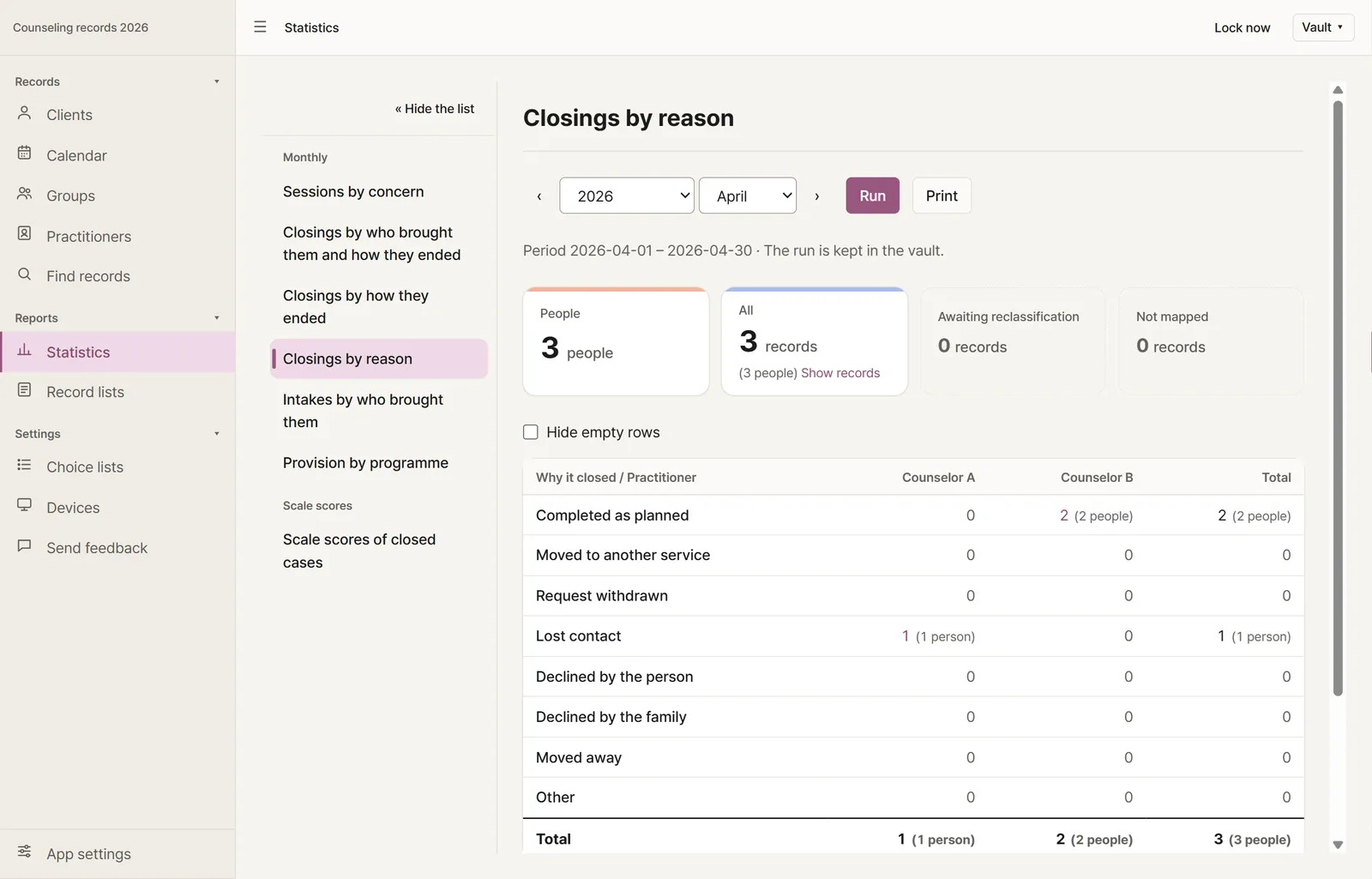
Statistics: the Closings by reason form run for April, each reason counted per practitioner. In the list of forms, the form counting sessions comes first, then the closing and intake forms.

Closings by reason, intakes by who brought them

Each month's closings are counted by reason and its intakes by who brought the client, per practitioner. They run on the same screen as the session statistics, and a count opens the records behind it.

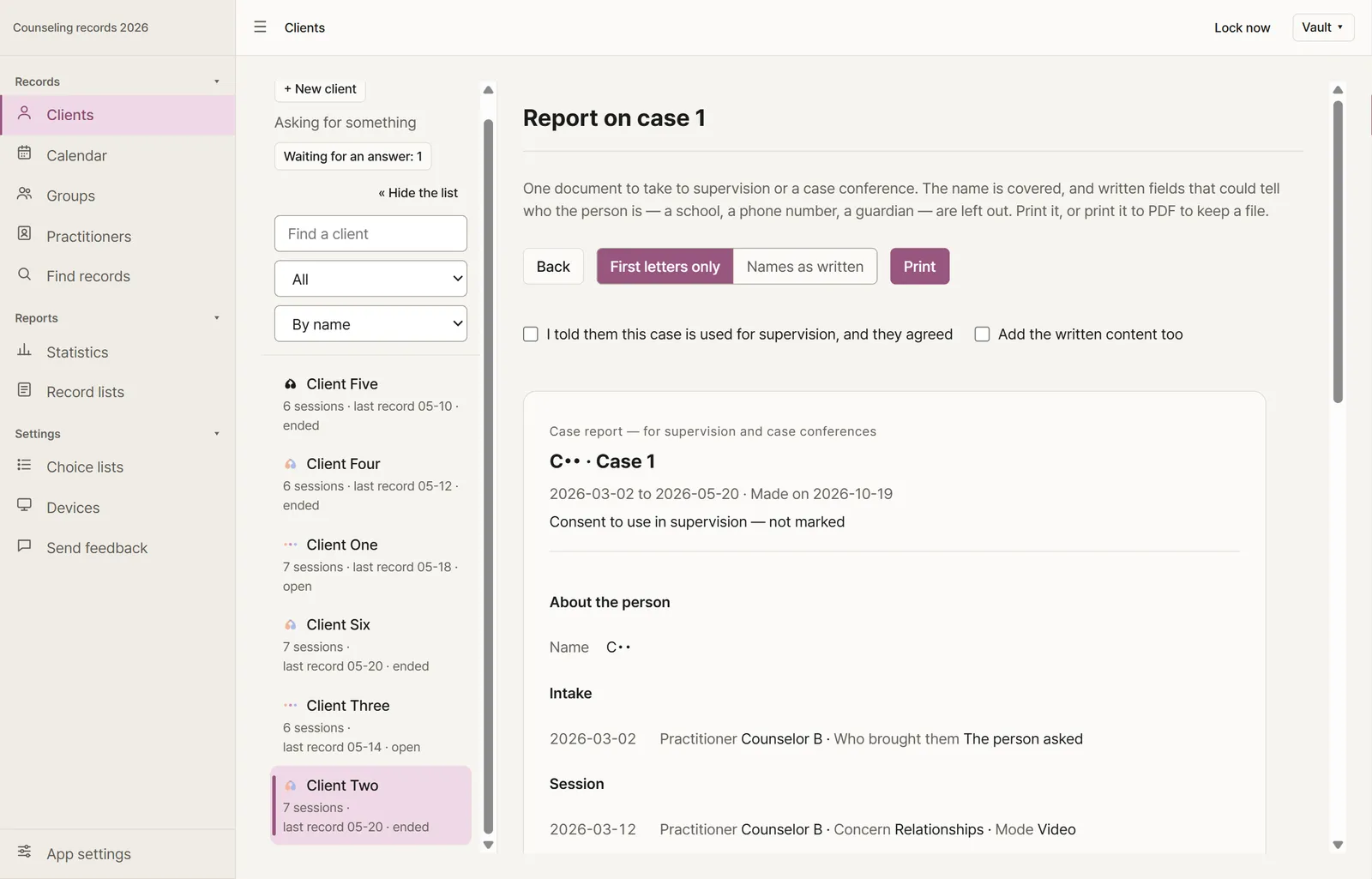
Report on case 1: a choice of First letters only or Names as written and a Print button, boxes for the consent to use the case in supervision and for adding the written content, and below them the report — C•• · Case 1, its dates, the consent line, then About the person, Intake and Session.

A case report for supervision

From each case on a client's page, one document to take to supervision or a case conference: the case's intake, sessions, goals, referrals and closing, kind by kind, with its scale scores and room to write your understanding of the case and the questions to bring. The name is covered down to its first letter (or kept, if you choose), and written fields that could tell who the person is — a school, a phone number, a guardian — are left out. Coded fields such as a grade go in only when picked, and the written content only when you ask for it, in which case the report says that names in it are not covered. A line says whether the client agreed to the case being used. Print it, or print it to PDF; nothing leaves the computer.

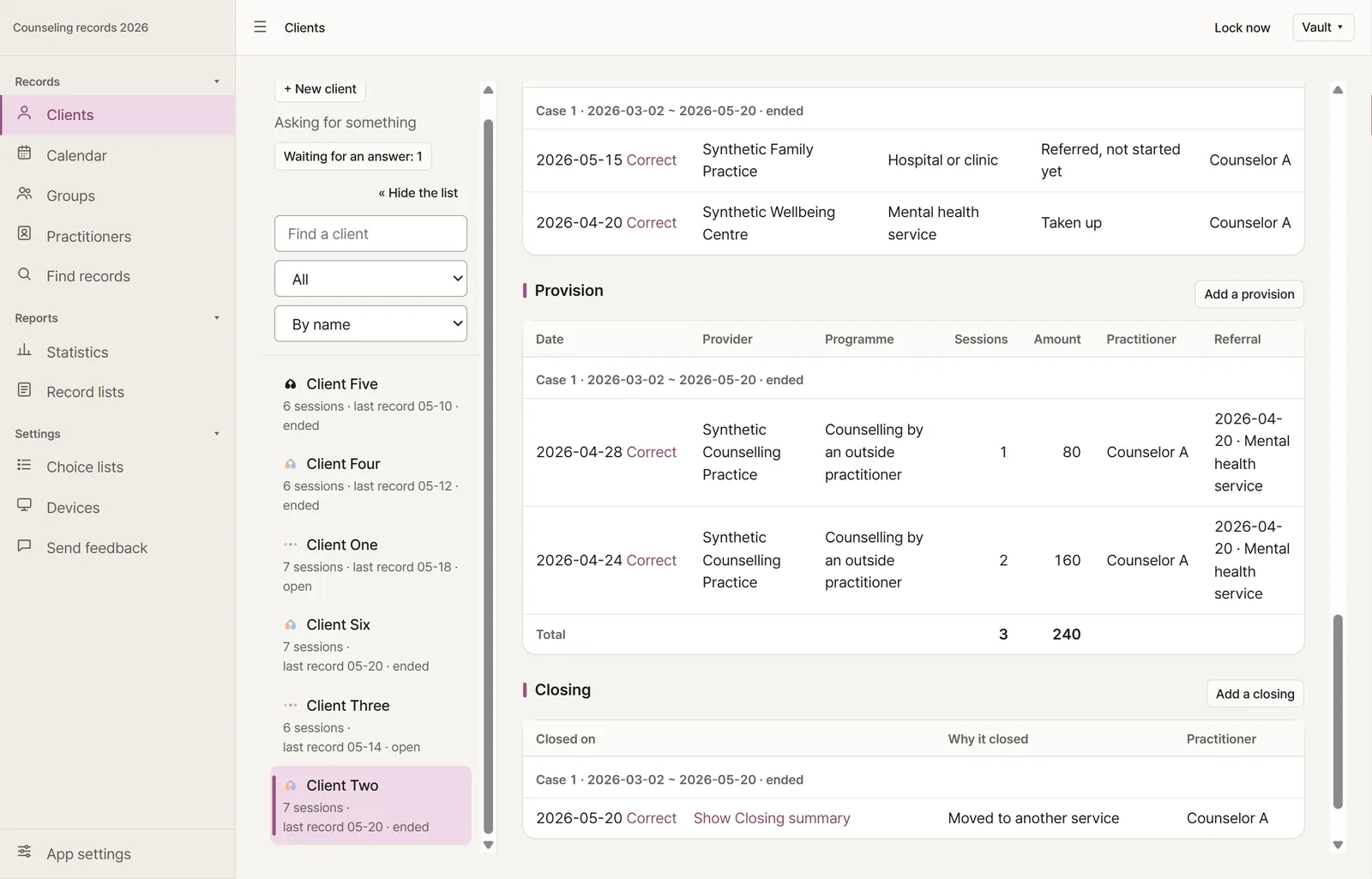
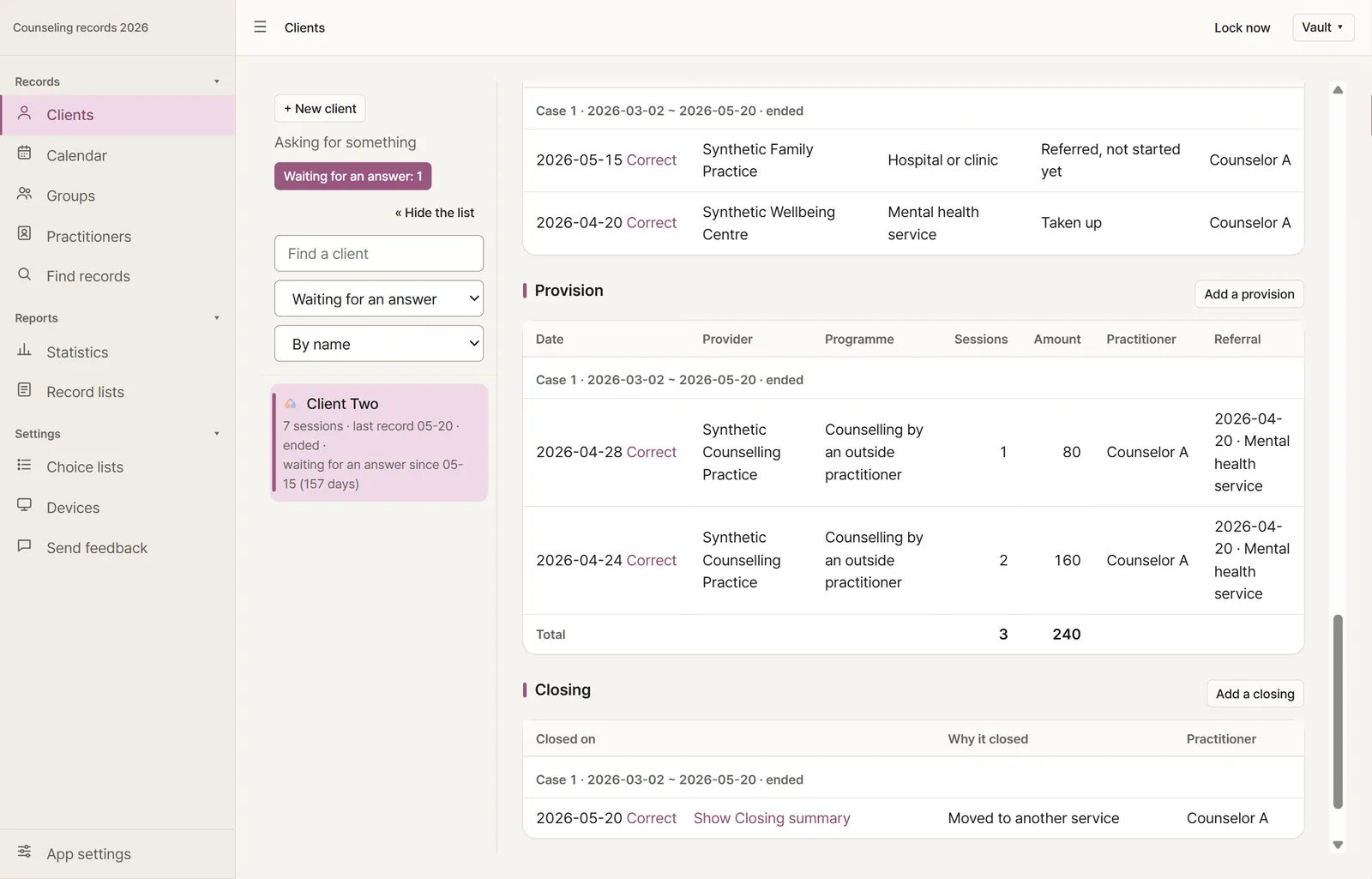
A client's page: below Referral, Provision lists two records of an outside counselling practice's sessions with their date, provider, programme, sessions, amount and the referral they follow (“2026-04-20 · Mental health service”), and a button to add one.

Provisions — outside counselling and its cost

Record what an outside practitioner or service provided after a referral, and what it cost: the date, the provider, the programme (counselling by an outside practitioner, treatment funding, other), the number of sessions and the amount — and pick which of the client's referrals it follows. The app keeps no accounts: budgets and payments stay in the systems that hold them.

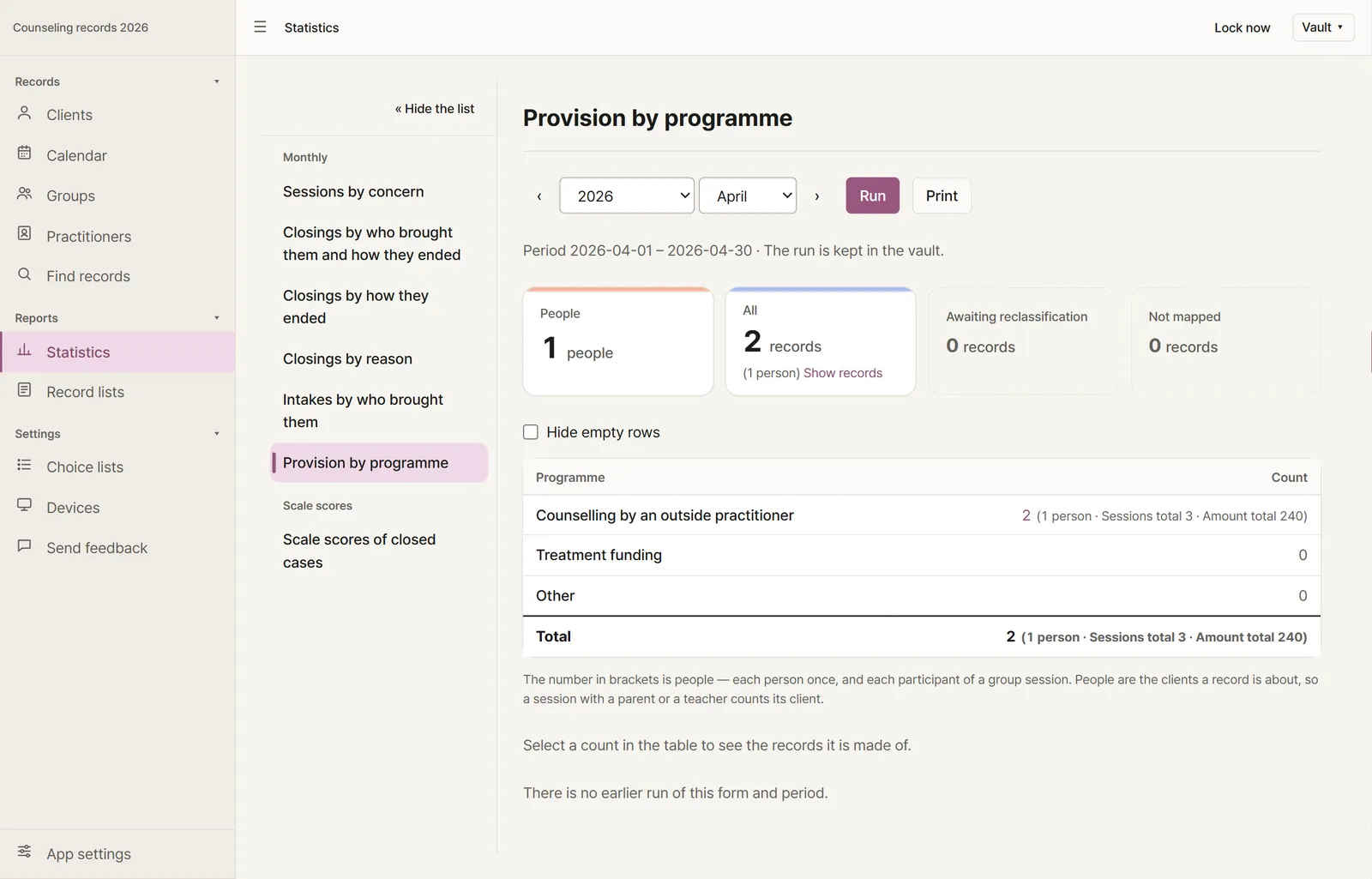
Statistics: the form “Provision by programme” run for April shows, for counselling by an outside practitioner, two provisions to one client with their sessions and amounts added up.

Provision by programme

A month's provisions counted by programme: how many, for how many people, with their sessions and amounts added up. The provision list puts a month's or any days' provisions in a table to copy or print.

Above the list of clients, pressing “Waiting for an answer: 1” keeps one client in view, with the day the referral was made and how many days ago.

What asks for something — referrals waiting for an answer

Above the list of people, beside follow-ups past their day and open cases with no session yet, the app counts the people with a referral whose outcome has not come back. Pressing it keeps them in view, with since when they have waited. The app counts dates only; it sends no reminders and judges nothing.

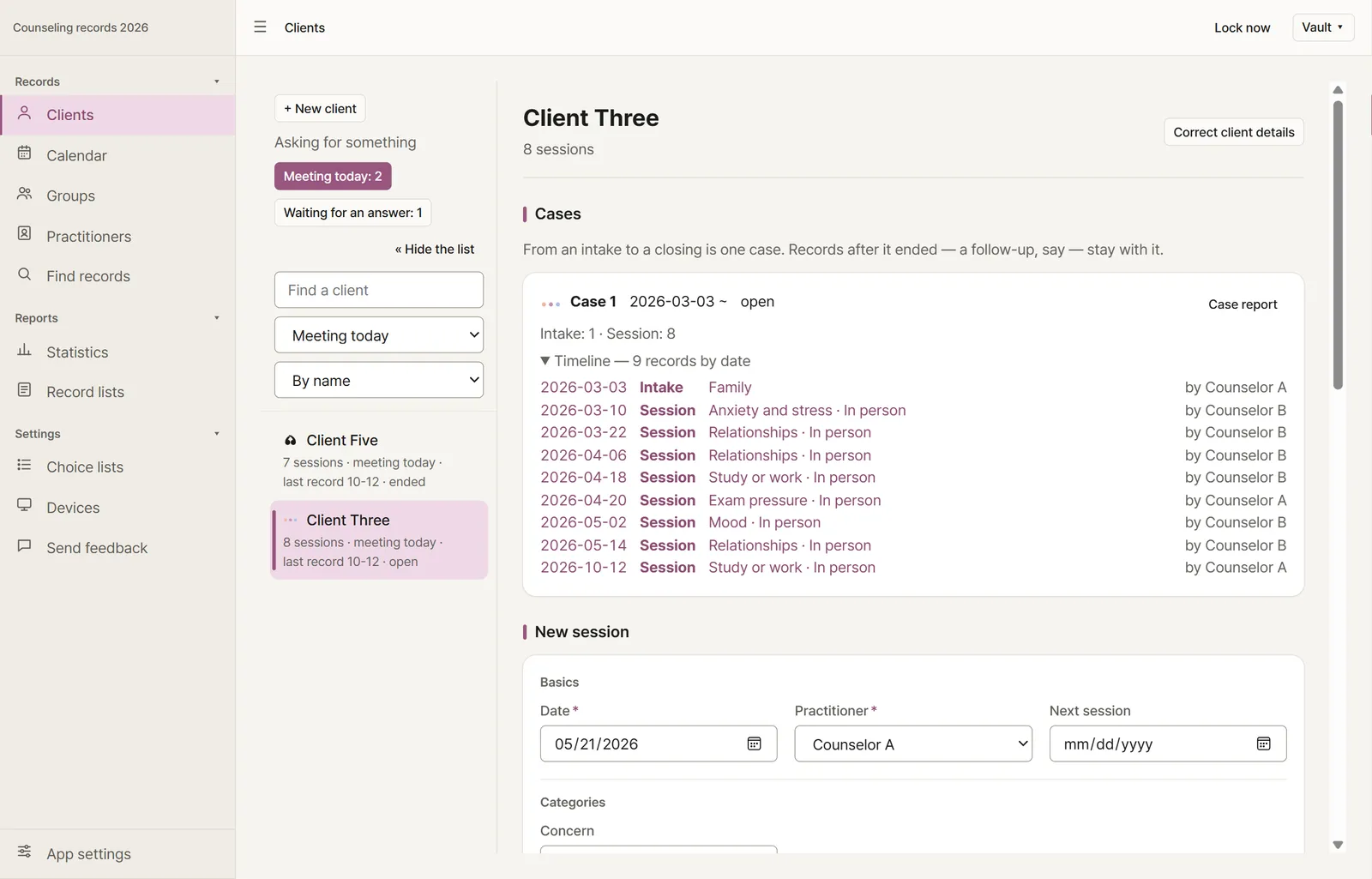
Above the list of clients, pressing “Meeting today: 2” keeps two clients in view, each line saying “meeting today”.

Who you meet today

Write the next session’s day in a session, and on that morning the list of people counts who you meet today. Pressing it keeps them in view, each line saying so. The day that counts is the one the latest session gives, so a later session that sets another day takes the place of the earlier plan. The app compares dates only; it sends no reminders.

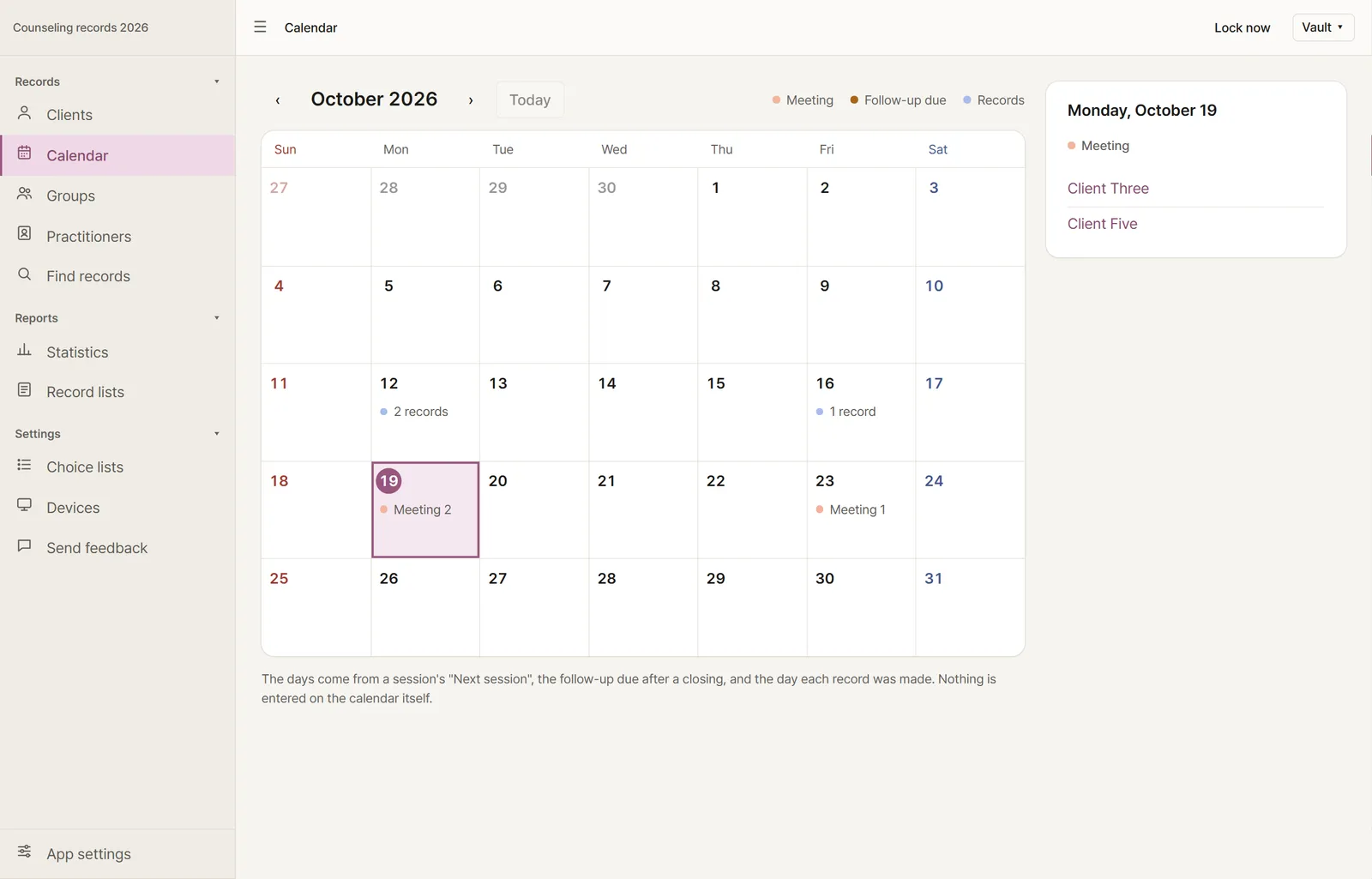
The calendar: October 2026 in a grid from Sunday, with “2 records” on the 6th, “1 record” on the 10th and “Meeting” on today, the 13th, and on the 17th; picking the 13th lists the two clients met that day on the right.

A calendar of the month

“Calendar”, beside the clients, shows a month at a glance: each day says how many people a session planned to meet then, the follow-ups due after a closing, and the records made that day. Pick a day to list who and what, each opening where it is kept; the arrow keys move between days and Page Up and Page Down between months. The days come from what the records already say, so nothing is entered on the calendar itself.

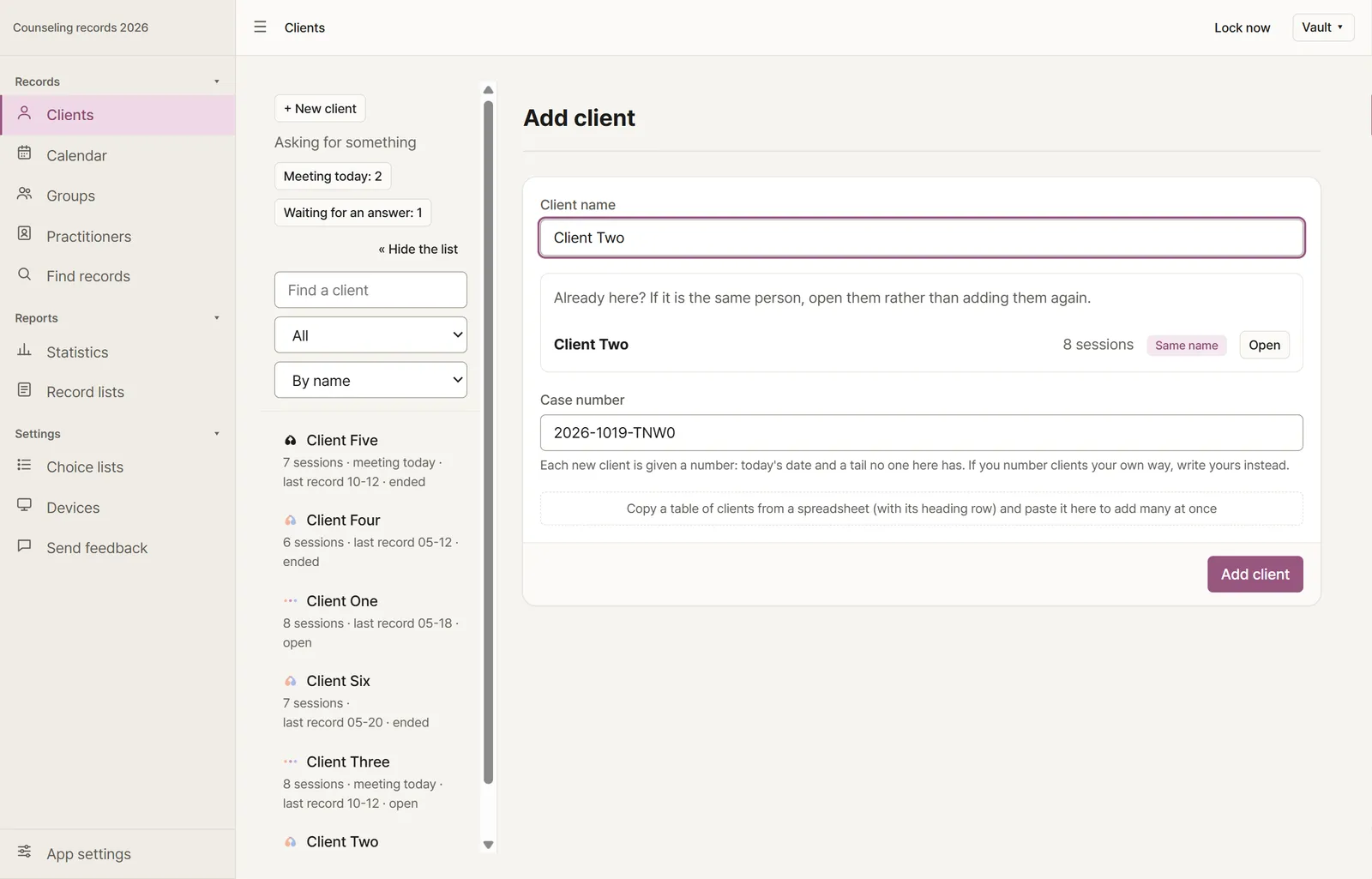
Typing a new client’s name shows “Already here?” with the client of that name, their details, their sessions and an “Open” button; below it the “Case number” field already holds a number that starts with today’s date.

Already here? And a case number

While you type a new client’s name, the clients already here by that name or one like it show under it, with the details that tell them apart and how many sessions each has. If it is the same person, open them rather than adding them again. Two people may share a name, so nothing stops the adding. A new client is given a case number by itself — the day they were added and four characters, such as 2026-1013-7K3Q — which you can change if you number clients your own way; clients pasted from a spreadsheet get one too. It is not a running count, so devices sharing a vault never hand out the same one.

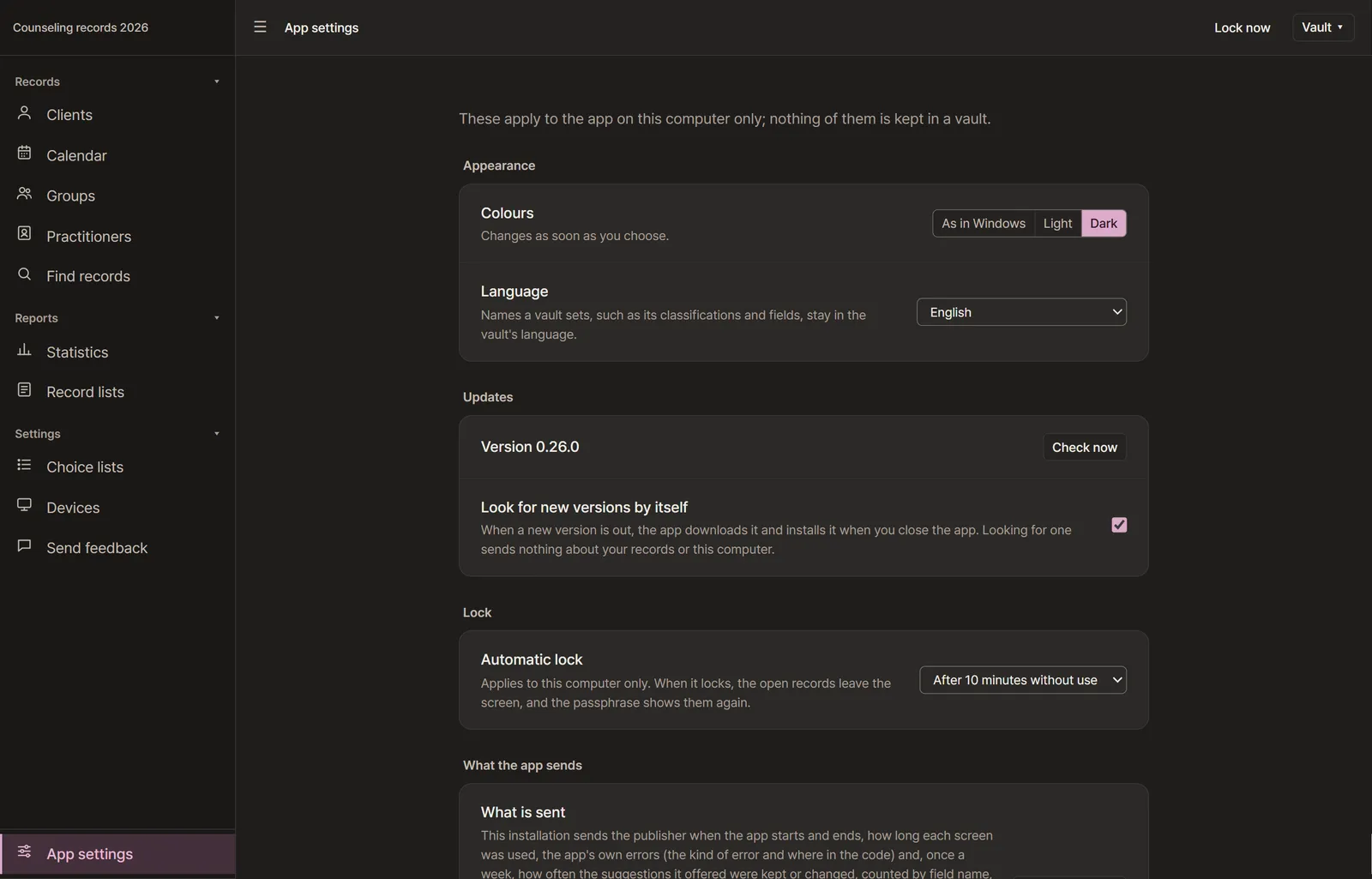
App settings in dark colours: colours (the system’s, light or dark), language, the version with “Check now”, looking for new versions by itself, the automatic lock and what the app sends.

App settings, dark colours among them

From the first screen, or “App settings” at the foot of a vault’s menu (Ctrl+,): light or dark colours or the system’s, the language, new versions, and how soon the app locks itself. The lines the app sends are there to read as they are, and so are the notices of the open-source software it includes. The settings apply to this computer only; nothing of them is kept in a vault.

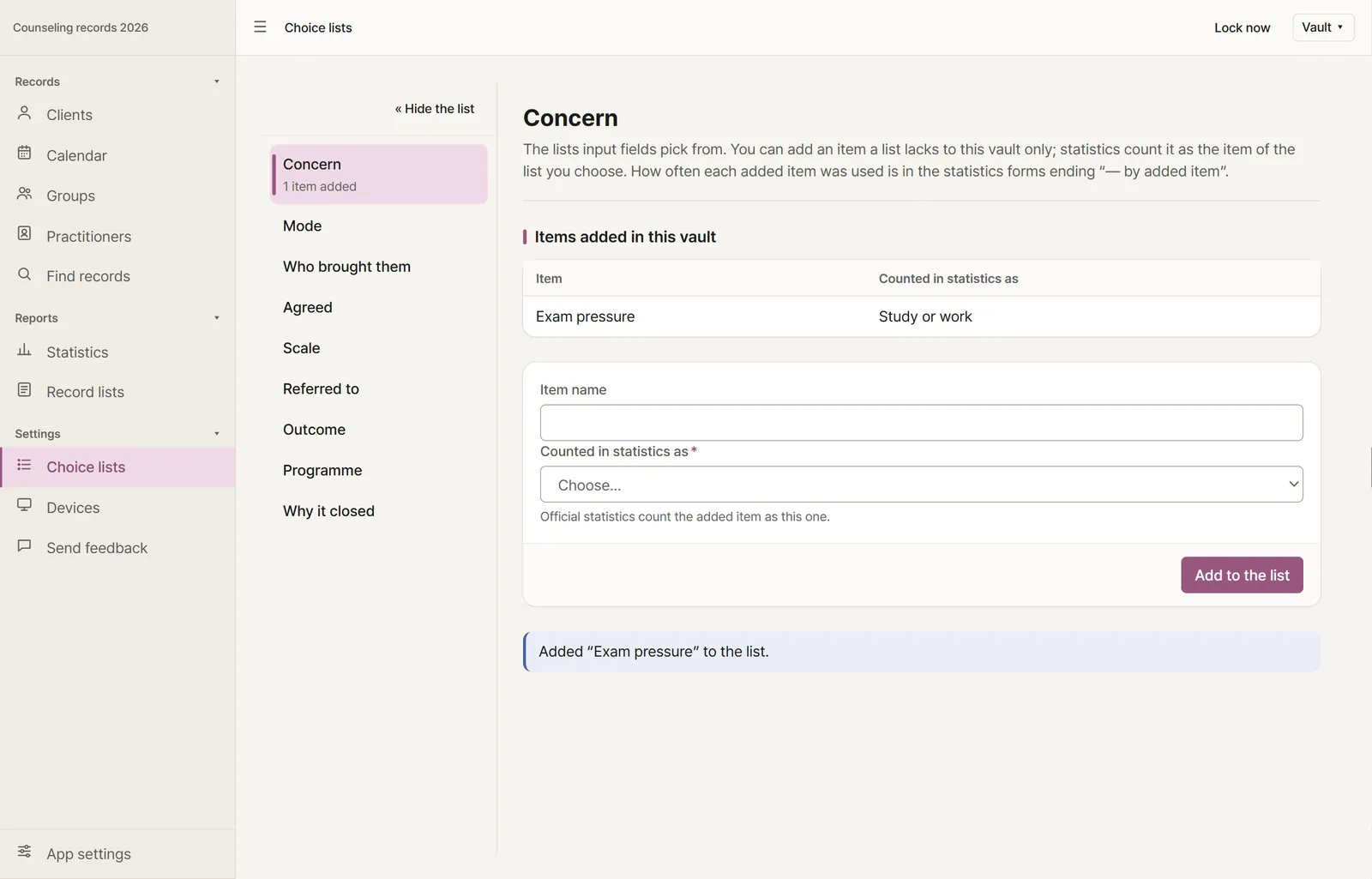
Choice lists: the Concern list with Exam pressure added in this vault, counted in statistics as Study or work, and fields to add another.

Choice lists you can add to

Add an item a list lacks to this vault only, choosing the item of the list statistics count it as. Forms offer it by the name you gave, and every statistic counts it as the item you chose, so the shared counts stay as they were.

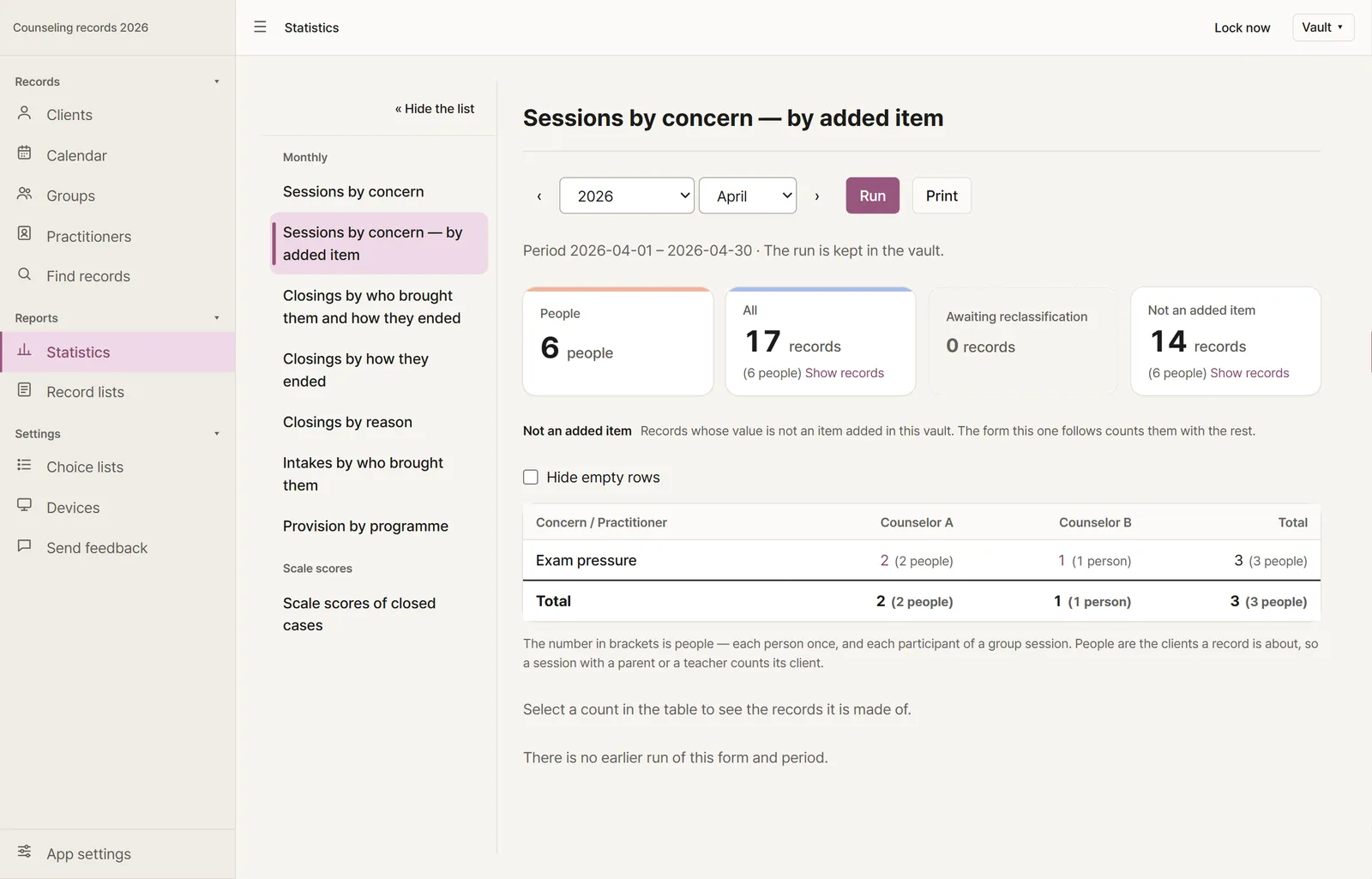
Statistics: April run with the form Sessions by concern — by added item, counting Exam pressure by practitioner, with the sessions of the list's own concerns shown apart as not an added item.

Added items counted by their own names

Adding the first item to a list brings, beside each form counting that list, a form ending “— by added item”. The shared form goes on counting the item as the one you chose, and this one counts it by its own name. It follows the list as you add more.

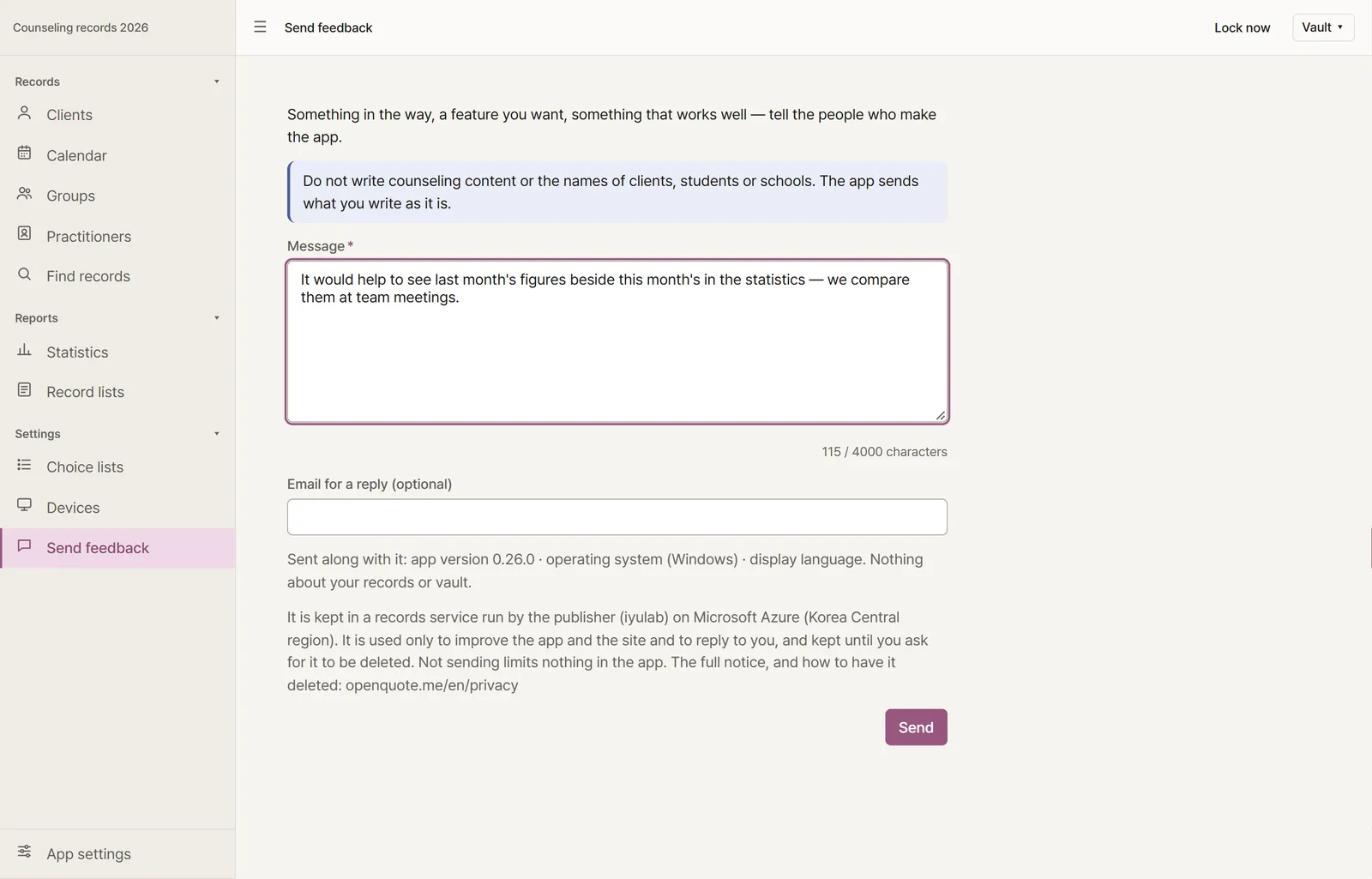
Send feedback: a note not to write counseling content or names, a message written under “Message”, an optional reply address, what goes with it (app version, operating system, display language) and how it is kept, and the Send button.

Feedback from the app

Tell the people who make the app what is in the way or what you want, from inside it — “Send feedback” in a vault’s menu or in the app settings. What goes is the message, the reply address only if you give one, and the app version, operating system and display language the screen lists before you send; nothing about your records or vault. Nothing leaves until you press Send. How it is handled is in the privacy notice.

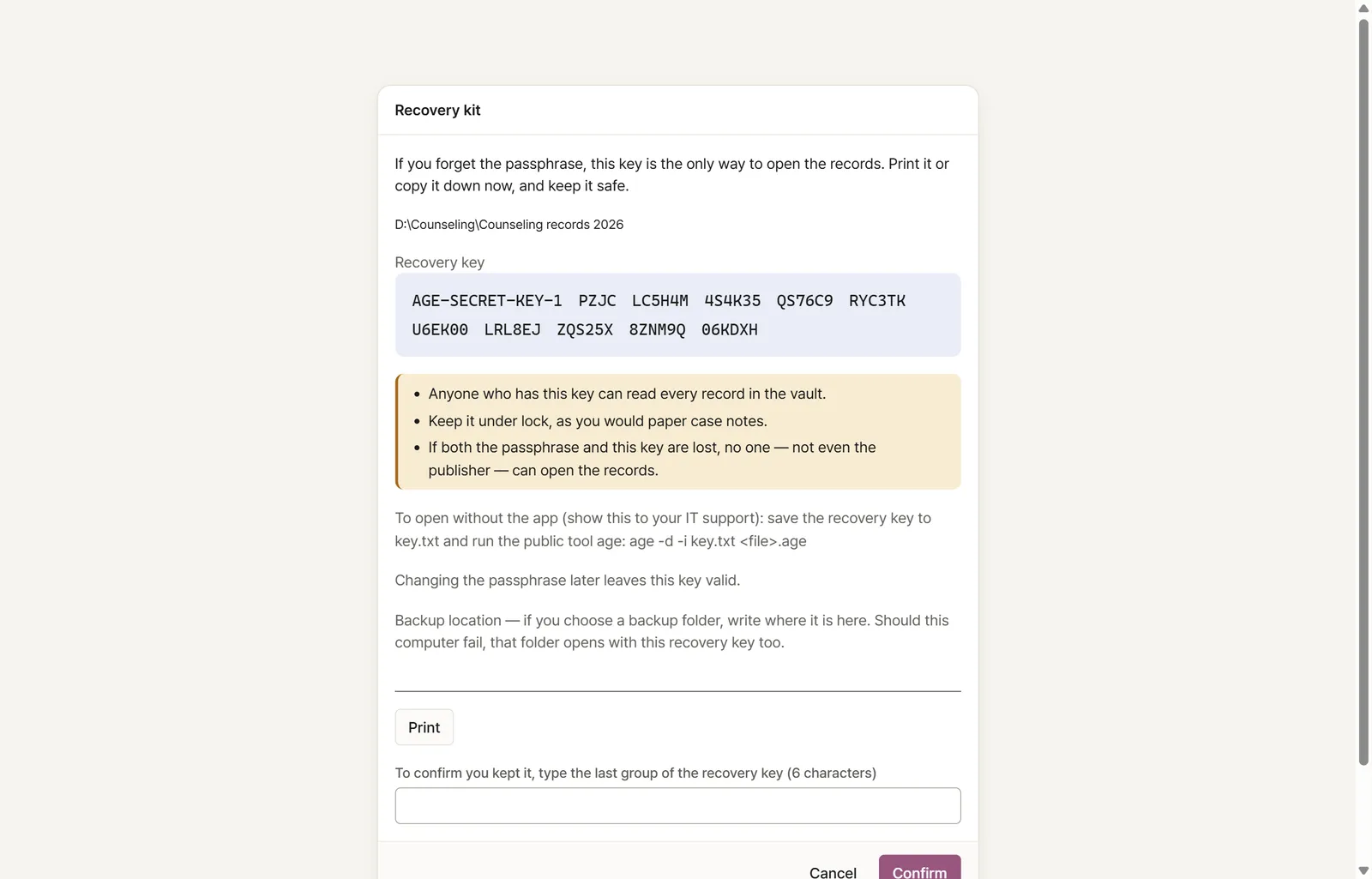
The recovery kit: the recovery key, how to keep it, and how to open the records without the app.

Encryption, and a recovery key

A new vault comes with a recovery kit. Forget the passphrase and the recovery key still opens the vault; change the passphrase and the old one stops opening it on every computer. Record files are encrypted with a public tool (age), so the recovery key opens them even without the app.

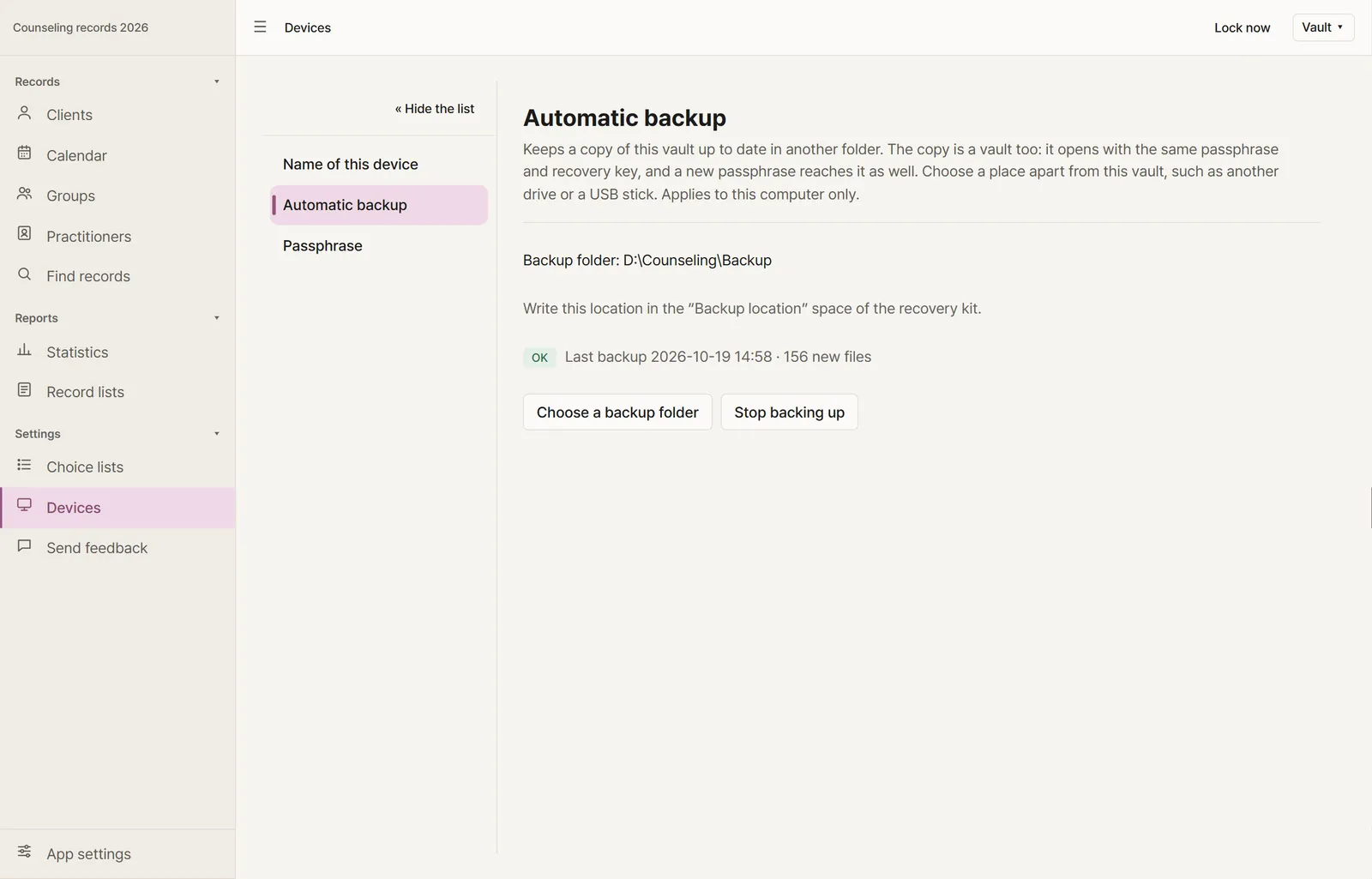
Automatic backup settings: the backup folder, the time of the last backup, and a button to turn it off.

Automatic backup, and a copy that reads without the app

Choose a folder apart from the vault — another drive, a USB stick — and the app keeps an encrypted copy of the vault up to date there. On request it also writes a copy that reads without the app, in a browser and a spreadsheet.

And

  • Several computers can share one vault folder. When two of them change the same field without seeing each other, both values are kept and shown until a person picks one.
  • Paste a list of clients copied from a spreadsheet to add or update them all at once.
  • Any period can be set to this year or last year in one click.
  • The vault locks after a set idle time.
  • The app tells you when a new version is out and updates itself when you choose to.
  • A Korean school counseling edition, with the classifications, school-year report forms and the national school system's upload list that Korean schools use, is on the Korean page.
  • The only things the app sends anywhere are content-free information about itself — its own errors, when it starts and ends and the time on each screen, under a random installation number, and once a week how often its suggestions were kept or changed, counted by field name — and the check for new versions. Everything it sends

Download

Openquote Care for Windows

  • Windows 10 and 11 · installs for the current user, without administrator rights.
  • A digitally signed installer.
  • Free, no account needed. An early preview.
  • The source code is public.

Get updates

News of new versions, and the Mac version

Once installed, the app tells you itself when a new version is out. If you have not installed it yet, or you use a Mac, get the news by email. There is no macOS version of Openquote Care yet — we will let you know when there is.